
Word to PDF should be as simple as you expect, and not involve downloading software, providing any account or waiting for an email link. There are quick and simple methods to transform a word file online and knowing which one fits your circumstances means you are not clicking the additional action.
Let’s look at the fastest ways to do it today, the things to be aware of, and when the online option is plain unnecessary.
Fastest Method: Built-In Export Options
Don’t go to a third-party site before you even change your browser to see if you already use a tool that works. There is no upload, no new tab, no waiting and it is the “zero extra steps” option.
If You are Already in Microsoft Word (Desktop or Web)
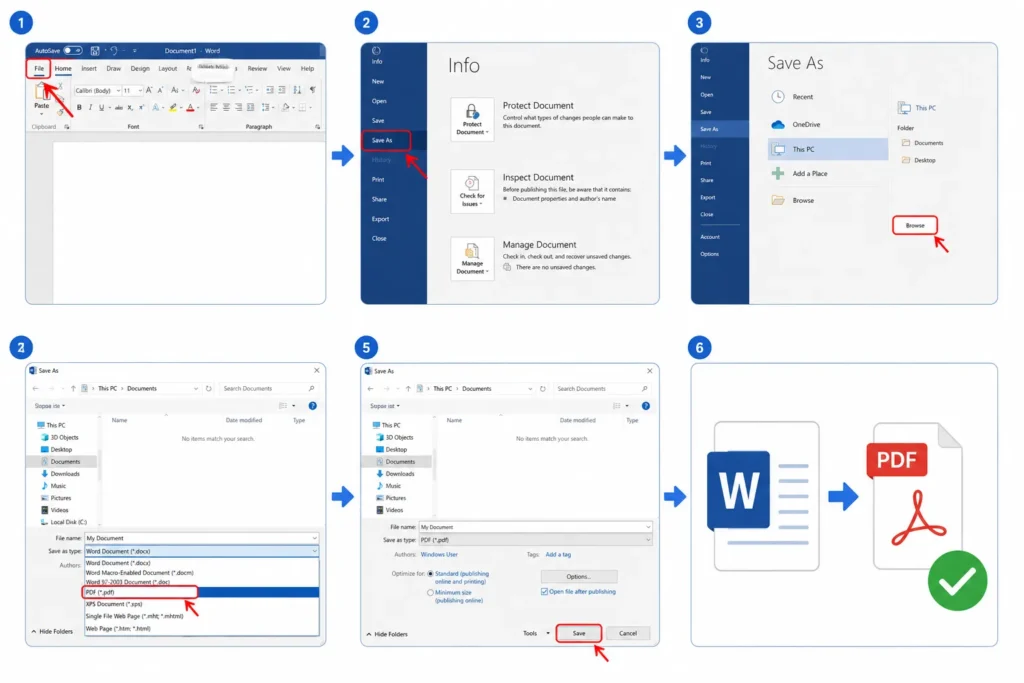
- Open your document.
- Click File, then Save As (or Download if you are using Word for the Web).
- Choose PDF from the format dropdown.
- Save. Done.
If You are Using Google Docs
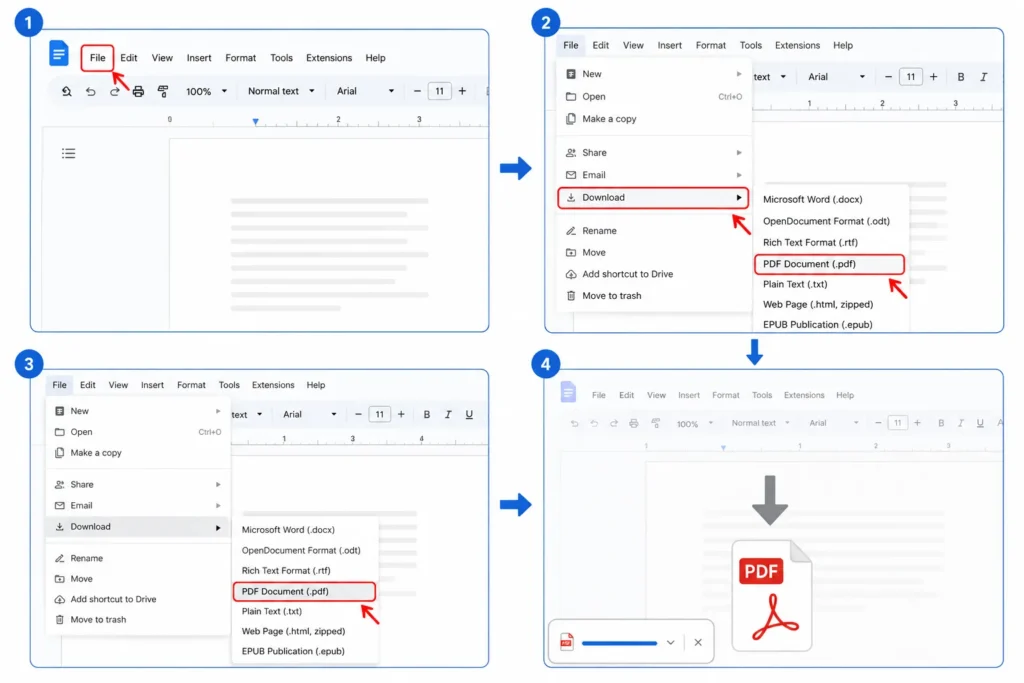
- Open the document in Google Docs.
- Click File, then Download.
- Select PDF Document (.pdf) or another format you need.
- The file downloads immediately, no upload step required already in Google system.
If You are on a Mac
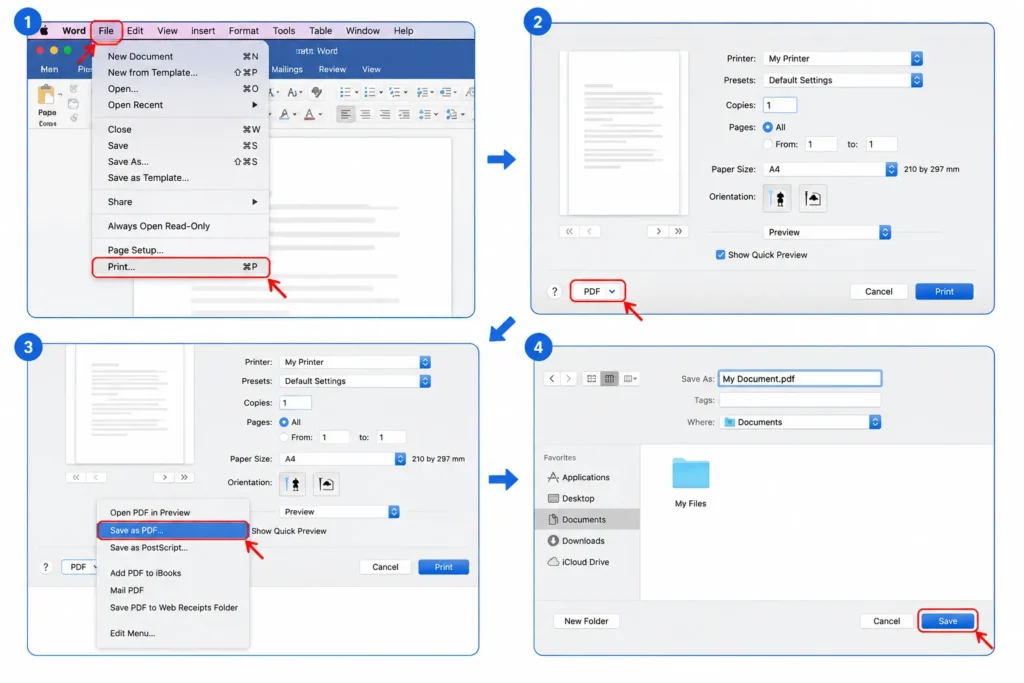
- Open the Word file (Pages or Word for Mac both support this).
- Click File, then Print.
- In the print dialog, click the PDF dropdown in the bottom-left corner.
- Select Save as PDF.
When You Need an Online Converter
Built-in export available when a file is already open in one of those apps. When dealing with an online converter, it is the most practical solution when you need to convert a file from someone else, you don’t have Word or Google Docs installed, or need to convert a file into a format that you can’t convert directly with these programs.
Here is the basic no-extra-steps process used by most tools that are reputable:
- Visit the converter upload page without any of the detours through homepages.
- Usually it is quicker to drag and drop your file onto the upload area, than to click through a file browser dialog.
- Choose the output format (most options automatically select PDF for Word documents).
- Good tools can process files in seconds, and give a direct download button without the need of sign-up.
Converting Multiple Word Files
When converting a large number of files, it can quickly become costly to convert each file one by one online. There are a few that make getting things done a bit easier:
- There are several online converters that offer multi-file upload which enables you to drop multiple word documents and download them.
- Offline desktop tools are usually more appropriate for processing large numbers of files (hundreds or thousands) as they do not have upload size limits or limits on the number of files that will be processed per hour.
- You can pick several Word documents, select “Open with Google Docs” and then export each one, but not a full 100 percent batch operation.
For any batch conversion scenario, except for one-time conversions, a dedicated offline tool will typically save you more time in the end than if you were to do all of the conversions online.
Frequently Asked Questions
What is the fastest way to convert a Word file to PDF?
If the file is already open in a word processor such as Microsoft Word, Google Docs or a Mac word processor (Pages/Word), then the in-built “Save As” or “Print to PDF” function is much quicker than using an online tool as it does not involve uploading a file.
Do online Word converters require an account?
Not usually. The majority of good converters will allow you to upload, convert and download without having to register. If you are required to create an account to download your file, you may want to consider using another tool.
Is it safe to convert sensitive documents using an online tool?
If you are looking to convert most of your ordinary files, you can play it safe with a reputable converter that employs standard encryption. If the document is sensitive, then an offline export method or a tool that processes the document locally does not upload the document to any server.
Can I convert a Word file to formats other than PDF?
Yes. The most common format conversions that most online converters offer is PDF, but most also will convert Word files to formats such as RTF, plain text, ODT and HTML.