
When you are reading a recipe, doing a workout or sharing photos with others, your iPhone isn’t broken. It is a standard feature that Auto-Lock and is easy to set up.
Here are the steps to take, and what to do if you can’t change the setting.
Why Your iPhone Screen Turns Off
Auto-Lock: Apple on-board feature that lowers and then shuts down your screen after a time period of inactivity. That is typically 30 seconds, unless specified.
It is there for two very good purposes: helping you conserve battery life and deterring people from trying to access your phone when you set it down and step away. However, it is not as convenient as you might think when using your phone hands-free.
How to Turn Off or Extend Auto-Lock
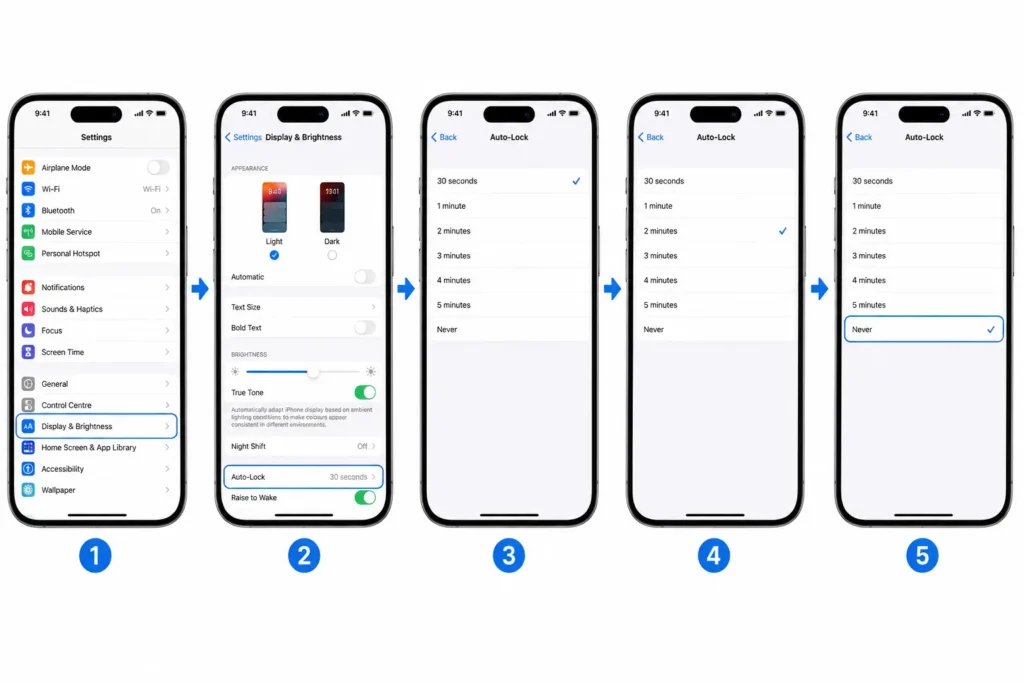
- Open the Settings app.
- Tap Display & Brightness.
- Tap Auto-Lock.
- Select 30 Seconds, 1, 2, 3, 4 or 5 Minutes (or Never to turn it off completely).
Press Never to keep the screen on until you lock it manually with the Side button. Direct solution and only takes a few seconds.
Should You Choose “Never” or Just a Longer Time?
It depends on what type of activity you are engaged. Never is a temporary setting that works if you are using your phone with a particular activity, like cooking, reading, or displaying.
Most people prefer to select a longer period such as 3 or 5 minutes than to turn off Auto-Lock. It packs the right combination of convenience, battery life and phone security when it comes to leaving your device unattended.
If you do choose Never, please note that you will need to manually lock your phone using the Side button afterwards. It is not ideal to leave your iPhone unlocked and unattended for an extended period of time, for privacy or security reasons.
Why Auto-Lock Might Be Greyed Out
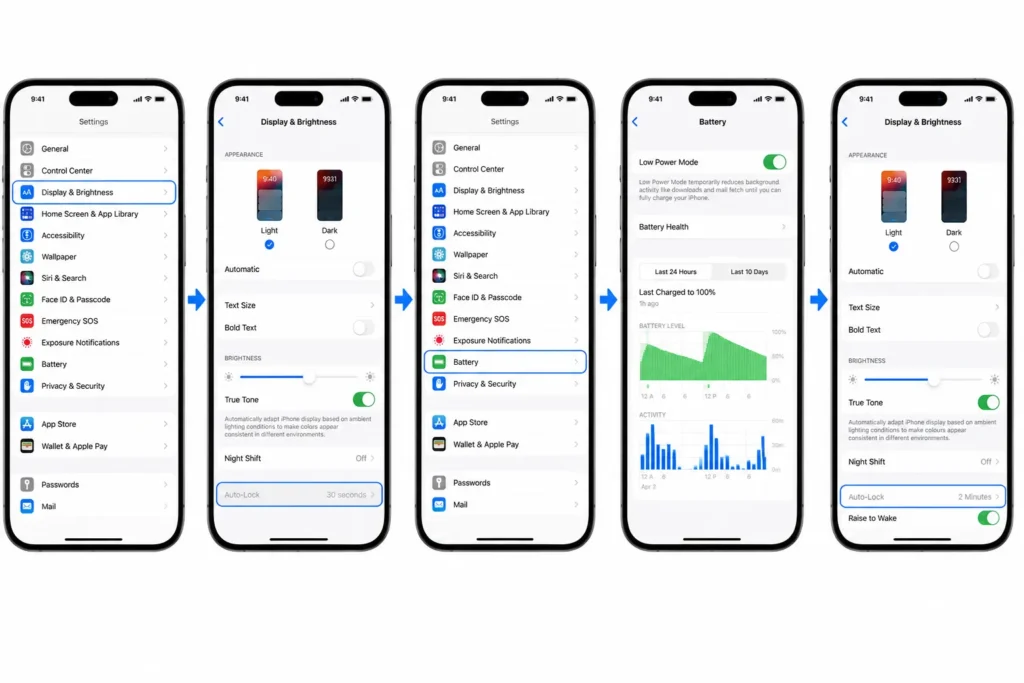
If you access the setting and it is greyed out, it is always because the Low Power Mode is enabled. Low Power Mode will keep Auto-Lock at 30 seconds for battery saving, and prevents you from changing the setting.
To fix this:
- Open Settings.
- Tap Battery.
- Turn off Low Power Mode.
- Return to Display & Brightness > Auto-Lock and it should now be adjustable.
If Your Screen Still Dims Unexpectedly
Sometimes it is not Auto-Lock but Auto-Brightness changing the brightness of the screen in response to the lighting conditions, as if it were turning off, although it is not.
To check this:
- Go to Settings and select Accessibility.
- Tap Display & Text Size.
- Toggle off Auto-Brightness.
Useful Alternative: Guided Access
If you need to keep the screen on for a particular purpose but you don’t want to completely disable Auto-Lock everywhere, then you might want to know about Guided Access. It keeps your iPhone in one app and can be set up to not let the screen go to sleep during that app.
It can be very useful when you need to change a global setting for Auto-Lock but don’t want to for the recipe or presentation you are following.
How to Stop Your iPhone Screen from Automatically Turning Off
| Issue | Fix |
|---|---|
| Screen turns off too fast | Settings > Display & Brightness > Auto-Lock > choose longer duration or Never |
| Auto-Lock setting greyed out | Settings > Battery > turn off Low Power Mode |
| Screen dims unexpectedly even with Auto-Lock adjusted | Settings > Accessibility > Display & Text Size > turn off Auto-Brightness |
| Want screen on for one specific app only | Set up Guided Access under Settings > Accessibility |
Frequently Asked Questions
How do I stop my iPhone screen from turning off completely?
Go to Settings > Display & Brightness > Auto-Lock, and select Never. It will keep the screen on until you lock it by pressing the Side button.
Why can’t I change my Auto-Lock setting?
Typically this occurs due to the setting of Low Power Mode which sets Auto-Lock to 30 seconds. To correct this go to Settings > Battery and disable Low Power Mode.
Does turning off Auto-Lock drain my battery faster?
Yes. A longer screen ON period (or never) consumes more battery than the default short screen ON timeout.
Is it safe to disable Auto-Lock completely?
It decreases battery lifespan, and security, because your phone will not automatically lock if left unattended. Generally speaking, people don’t want to turn off this feature, but rather opt for a longer duration.