

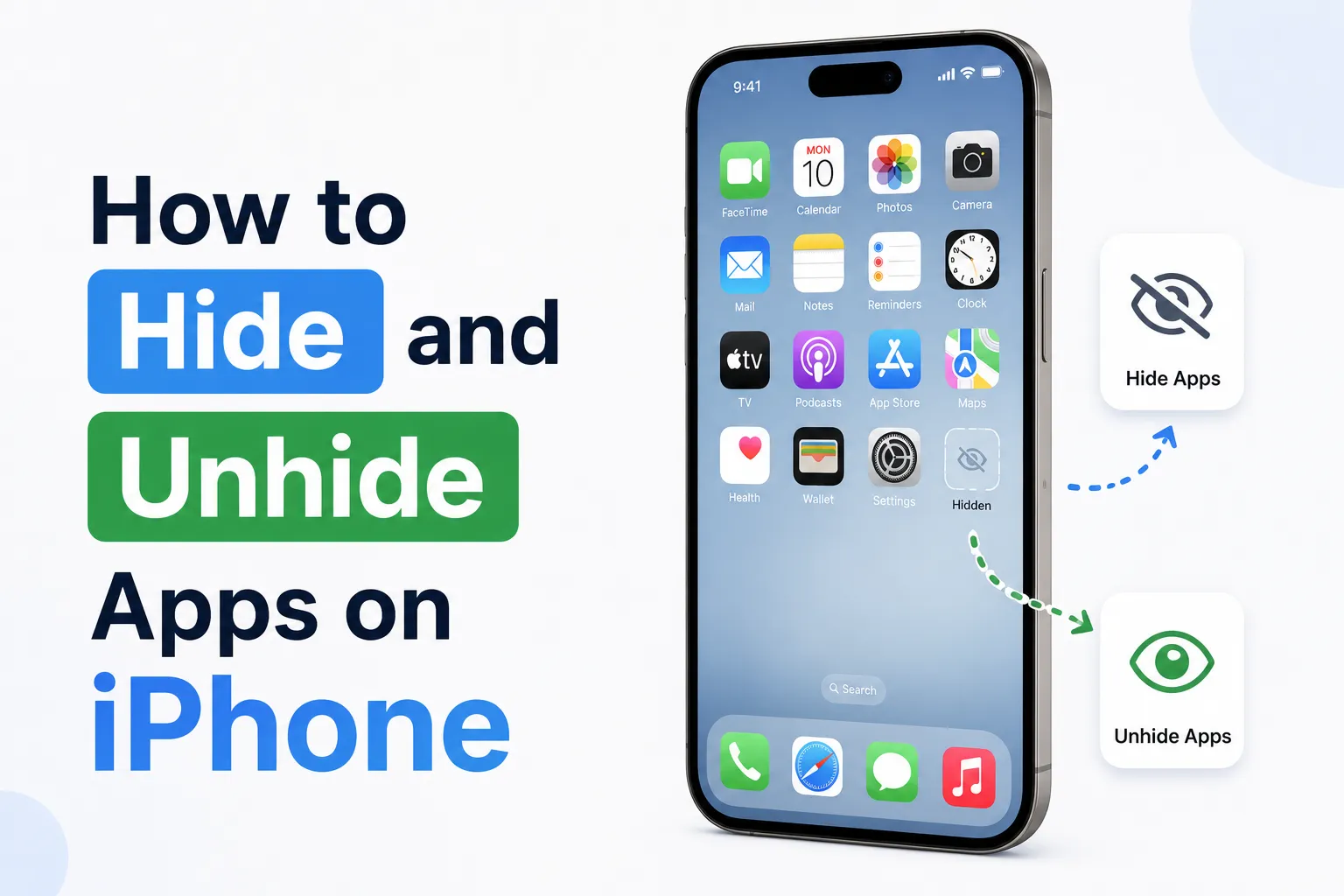
On an iPhone, there are a different ways that Apple have provided you with that are actually different. Some remove items from your Home Screen. Some lock an application behind a Face ID, preventing it from being opened without a face.
All the ways that currently work, and how to reverse each of them.
Method 1: Hide and Require Face ID (Strongest Option)
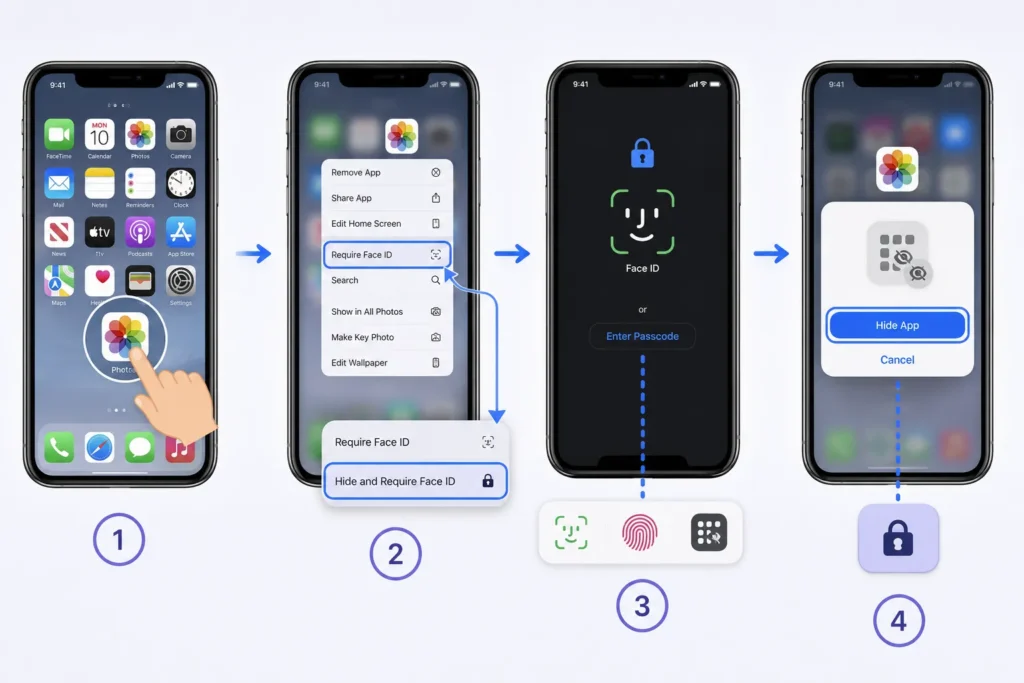
It is the correct built-in hiding feature provided by Apple from iOS 18 onwards, which remains the typical way to hide until today. It uninstalls the app from your Home Screen, search, Siri suggestions, and even notifications, and locks the app inside a protected hidden folder.
To hide an app like this:
- Touch and hold the app icon until the context menu appears.
- Tap Require Face ID, then choose Hide and Require Face ID.
- Authenticate with Face ID, Touch ID, or your passcode.
- Confirm by tapping Hide App.
The application is into a Hidden folder at the bottom of your App Library that will be available after you log in. The built-in apps such as Camera and Safari cannot be hidden using this method.
How to Unhide an App from the Hidden Folder
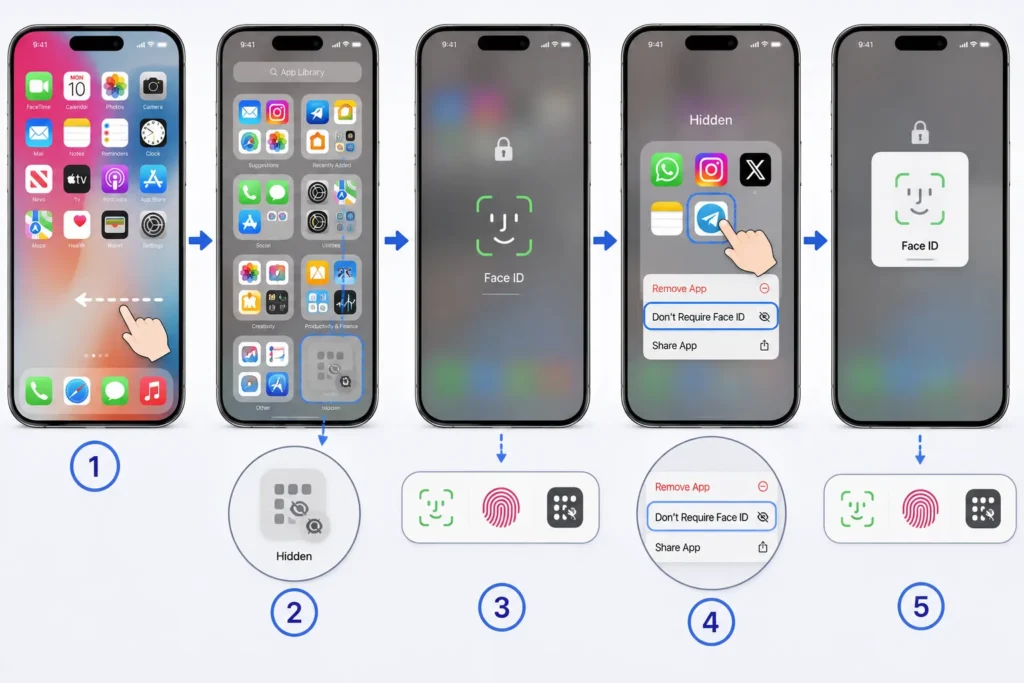
- From your Home Screen, swipe left past all your pages until you reach the App Library.
- Scroll to the very bottom to find the Hidden folder.
- Tap it and authenticate with Face ID, Touch ID, or your passcode.
- Find the app, touch and hold its icon, then tap Don’t Require Face ID.
- Authenticate again to confirm.
The app is top of your App Library. To add it to your Home Screen, long press it and touch Add to Home Screen.
Method 2: Remove from Home Screen (Lighter Option)
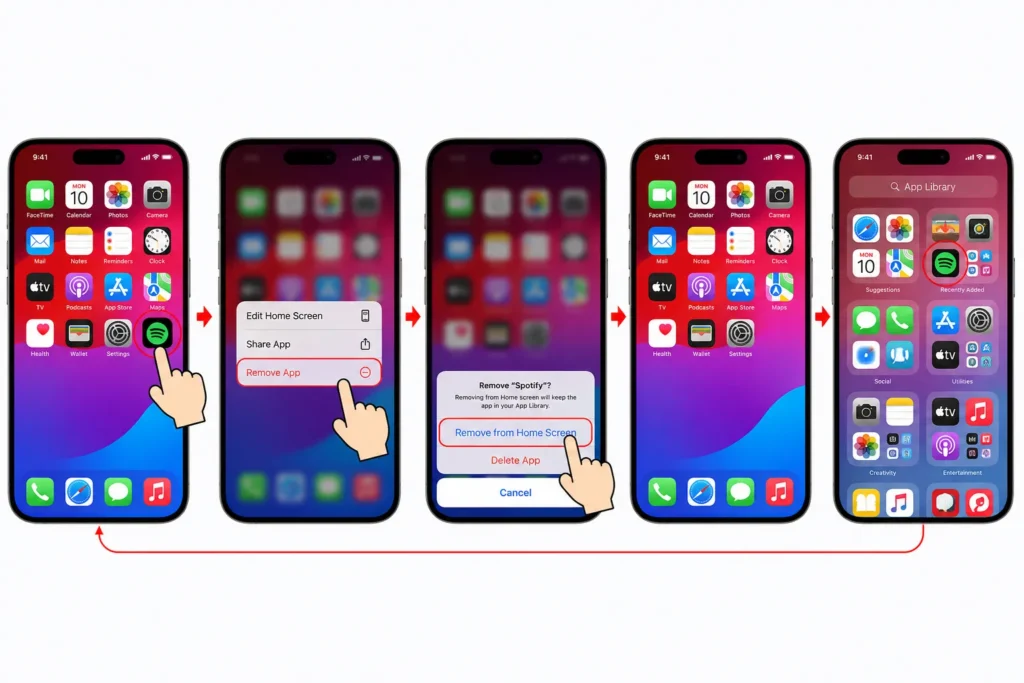
This is a milder version of concealment. The app icon is removed from the Home Screen, but it remains in the App Library and Search, and it can’t be locked with Face ID.
- Touch and hold the app icon.
- Tap Remove App.
- Select Remove from Home Screen, not Delete App.
Apps are fully installed and running. Instead of being on your Home Screen, it is a single swipe into the App Library.
How to Bring an App Back to the Home Screen
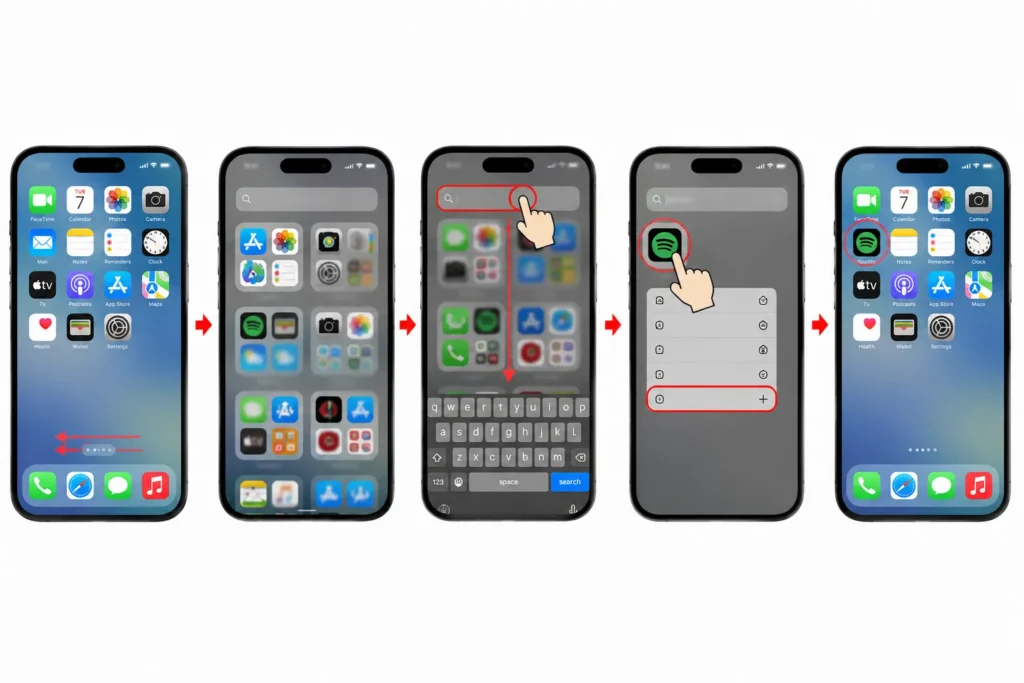
- Swipe left past your Home Screen pages to open App Library.
- Search for the app by name, or scroll to find it.
- Touch and hold the icon, then tap Add to Home Screen.
The app will be added back to the next available space on your Home Screen.
Method 3: Hide an Entire Home Screen Page
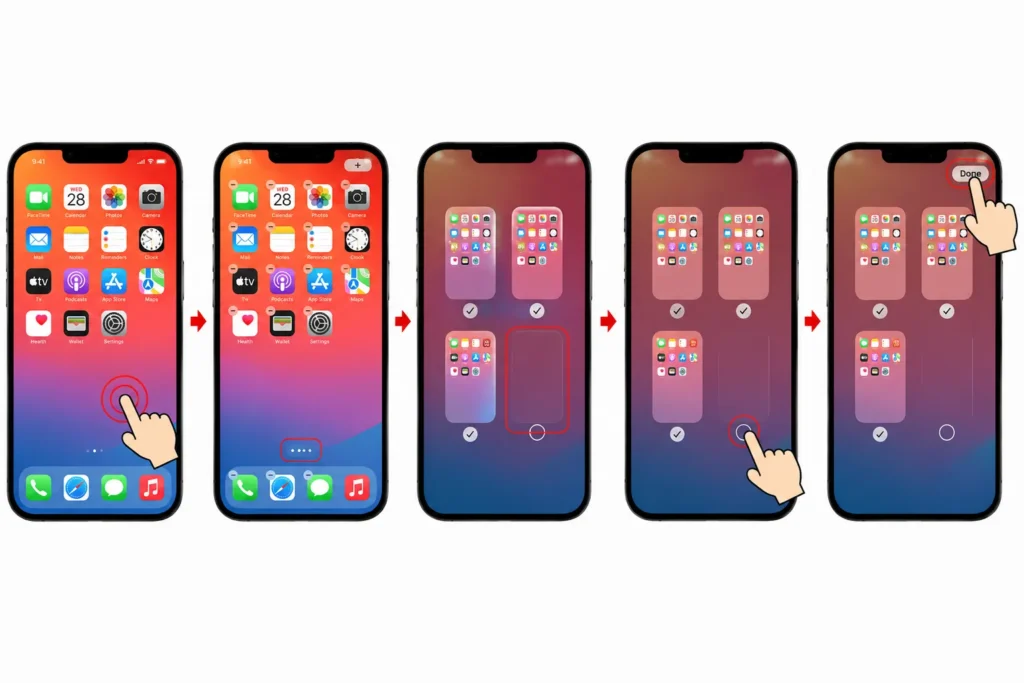
You can hide entire Home Screen pages if you want to hide a whole cluster of apps at once, instead of one at a time.
- Touch and hold a blank area of your Home Screen.
- Tap the page dots near the bottom of the screen.
- Uncheck the pages you don’t want visible.
- Tap Done.
If you want to make a hidden page visible again, repeat the above process and re-check the page you want visible again.
Method 4: Restrict Apps Through Screen Time
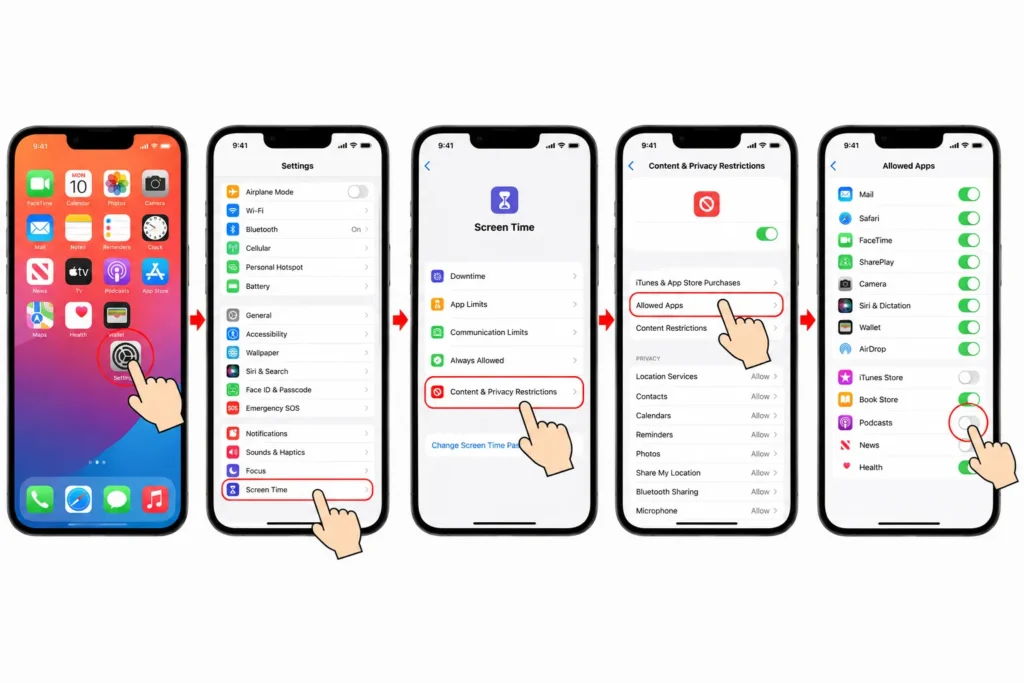
Screen Time is more of a parental control or self-control hiding than the typical privacy.
- Go to Settings, then Screen Time.
- Tap Content & Privacy Restrictions.
- Tap Allowed Apps.
- Turn off any app you want hidden and inaccessible.
To unhide, repeat the above procedure and turn the app off again. If you are not the one who set up Screen Time, such as a parent or employer, you will need the passcode.
Which Method Should You Use?
| Method | Best For | Requires Face ID/Passcode |
|---|---|---|
| Hide and Require Face ID | Sensitive apps you want fully locked and hidden from Search/Siri | Yes |
| Remove from Home Screen | Quick decluttering without locking | No |
| Hide a Home Screen Page | Hiding several apps at once | No (unless page itself is set up with restrictions) |
| Screen Time Restrictions | Parental controls or self-restriction | Yes (Screen Time passcode) |
If an App Won’t Reappear at All
If none of the above methods worked and you still don’t see an app anywhere, chances are that it has been deleted. Tap down on your Home Screen to access Spotlight Search, and enter the name of the app.
If it appears with a small cloud symbol next to it, it means that it has been deleted, not hidden. Tap the cloud icon to redownload it for free, as long as you are signed into the same Apple Account originally used to download it.
Frequently Asked Questions
What is the difference between hiding an app and removing it from the Home Screen?
When you hide with Face ID, the app will be completely locked with the Face ID, and you will no longer see it in Search, Siri and notification center. Uninstallation from Home Screen simply removes the app icon from the home screen, but keeps the app still visible in App Library and Search.
Can I hide Apple built-in apps like Camera or Safari?
No, the Hide and Require Face ID method won’t work with any of Apple pre-installed apps. These are available as Home Screen removal, or Screen Time restrictions.
Why can’t I find an app anywhere, even in App Library?
I think it was deleted, not hidden. Use Spotlight to locate it; if it has a cloud icon, it can be downloaded again free of charge with the same Apple Account.
Does hiding an app on my iPhone hide it on my iPad?
No. Settings won’t automatically sync between devices when they are hidden and unhidden.
